
5 Easy Steps to Teach Using PDF & PPT on IFP is the most practical and powerful approach for modern digital classrooms. In today’s fast-paced education environment, teachers need seamless ways to present lessons, annotate content, engage students, and instantly
 Share study materials. With the advanced features of the Uptree Interactive Flat Panel, teaching through PDFs and PowerPoint presentations becomes smooth, interactive, and highly effective.
At Uptree, we believe smart classrooms should not be complicated. That’s why this guide on 5 Easy Steps to Teach Using PDF & PPT on IFP will walk you through a structured process that enhances teaching quality while saving valuable classroom time.
Why Digital Teaching with PDF & PPT on IFP is Essential
Before diving into the process, it’s important to understand why 5 Easy Steps to Teach Using PDF & PPT on IFP is transforming classrooms across schools, colleges, and coaching institutes.
Traditional boards and projectors limit interaction. However, an Interactive Flat Panel allows teachers to:
-
-
Open and edit PDF files instantly
-
Present PPT slides dynamically
-
- Annotate in real time
-
Zoom into detailed diagrams
-
Add multimedia resources
-
Save and distribute notes digitally
This not only improves understanding but also increases student participation and retention.
Step 1: Open Your PDF & PPT Files Instantly
The first step in 5 Easy Steps to Teach Using PDF & PPT on IFP is accessing your content quickly and smoothly.
With Uptree Interactive Flat Panel, you can:
-
Insert a USB drive and open files directly
-
Access Google Drive or cloud storage
-
Use built-in file manager
-
Wirelessly mirror your laptop
-
Open PowerPoint or PDF viewer apps
There’s no need for additional devices or complicated setups. Everything is accessible from one screen, ensuring uninterrupted teaching flow.
By following this first step in 5 Easy Steps to Teach Using PDF & PPT on IFP, teachers eliminate setup delays and m
aximize classroom time.
Step 2: Annotate & Explain Concepts Clearly
The second step in 5 Easy Steps to Teach Using PDF & PPT on IFP focuses on explanation and clarity.
Using the smart annotation tools on Uptree IFP, teachers can:
-
-
Highlight key points
-
Underline important sentences
-
-
Draw shapes and diagrams
-
Write notes directly on slides
-
Use multiple pen colors
-
Erase or undo instantly
For example, while teaching mathematics through a PPT, you can solve equations directly on the slide. In science PDFs, you can label diagrams in real time.
This visual reinforcement makes 5 Easy Steps to Teach Using PDF & PPT on IFP extremely effective for concept-based learning.
Step 3: Add Multimedia for Better Engagement
The third step in 5 Easy Steps to Teach Using PDF & PPT on IFP is integrating multimedia elements.
One of the biggest advantages of Uptree IFP is that it allows seamless switching between resources:
-
Insert educational videos
-
Open live web pages
-
Play animations
-
Add images instantly
-
Conduct live demonstrations
While presenting a PPT, you can pause and play a relevant video without closing your presentation. This keeps lessons dynamic and interactive.
Students respond better to visual and audio elements, making 5 Easy Steps to Teach Using PDF & PPT on IFP a modern teaching solution.
Step 4: Encourage Student Interaction
The fourth step in 5 Easy Steps to Teach Using PDF & PPT on IFP is student participation.
With multi-touch functionality, multiple students can interact with the screen simultaneously. Teachers can:
-
-
Invite students to solve questions
-
Conduct interactive quizzes
-
Highlight errors collaboratively
-
Organize group discussions
-
Encourage brainstorming sessions
-
Instead of passive listening, students become active participants. This increases classroom energy and improves learning outcomes.
By applying 5 Easy Steps to Teach Using PDF & PPT on IFP, classrooms shift from teacher-centered to student-centered learning environments.
Step 5: Save, Share & Distribute Instantly (Including QR Code Sharing)
The final step in 5 Easy Steps to Teach Using PDF & PPT on IFP is saving and sharing lesson materials efficiently.
After annotating a PDF or PPT, teachers can:
 Save the edited file
-
Export it as PDF
-
Upload to cloud storage
-
Share via email
-
Transfer via USB
QR Code Sharing – Instant & Paperless Distribution
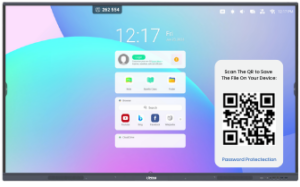
One of the most powerful features of the Uptree Interactive Flat Panel is the ability to share PPT or PDF using a QR code.
Here’s how it works:
-
Complete your annotations during class.
-
Generate a QR code directly from the panel.
-
Display the QR code on screen.
-
Students scan it using their smartphones.
-
The annotated PDF or PPT is instantly downloaded.
This feature makes 5 Easy Steps to Teach Using PDF & PPT on IFP even more impactful because:
-
No WhatsApp forwarding needed
-
No email collection required
-
Instant sharing in seconds
-
Completely paperless distribution
-
Every student gets the exact class notes
QR code sharing enhances efficiency and ensures no student misses important content.
Key Benefits of 5 Easy Steps to Teach Using PDF & PPT on IFP
Following 5 Easy Steps to Teach Using PDF & PPT on IFP offers multiple advantages:
1. Time Saving
No rewriting notes repeatedly.
2. Enhanced Clarity
Annotations improve conceptual understanding.
3. Better Engagement
Interactive tools increase participation.
4. Organized Digital Records
All lessons stored safely.
5. Instant QR Code Sharing
Quick and smart distribution of notes.
Why Schools Choose Uptree Interactive Flat Panel
When implementing 5 Easy Steps to Teach Using PDF & PPT on IFP, hardware quality plays a major role. Uptree ensures reliability and smooth classroom performance with:
-
4K Ultra HD display
-
Multi-touch support
-
Smooth PDF & PPT compatibility
-
Built-in whiteboard tools
-
Wireless screen sharing
-
Google EDLA Certification
-
Optional built-in camera & microphone
These features make Uptree the ideal solution for smart classrooms.
Real Classroom Example
Imagine a biology teacher explaining the human heart:
-
Open a PDF diagram.
-
Zoom into detailed sections.
-
Highlight arteries and veins.
-
Add labels using annotation tools.
-
Generate a QR code to share annotated notes with students instantly.
This real-world application perfectly demonstrates 5 Easy Steps to Teach Using PDF & PPT on IFP in action.
Common Mistakes to Avoid
While using 5 Easy Steps to Teach Using PDF & PPT on IFP, avoid:
-
Overcrowded slides
-
Ignoring interactive tools
-
Not saving annotated content
-
Skipping student involvement
-
Forgetting QR sharing feature
Using all features effectively maximizes teaching impact.
How 5 Easy Steps to Teach Using PDF & PPT on IFP Improves Learning Outcomes
When teachers implement 5 Easy Steps to Teach Using PDF & PPT on IFP, classrooms become:
-
More organized
-
More engaging
-
More interactive
-
More efficient
-
More student-focused
Interactive visual teaching improves retention and helps students understand complex topics easily.
Conclusion
5 Easy Steps to Teach Using PDF & PPT on IFP is more than a method — it’s a smart teaching strategy designed for modern education. With the support of the Uptree Interactive Flat Panel, teachers can present, explain, interact, annotate, save, and even share lesson materials instantly using QR codes.
By following these 5 Easy Steps to Teach Using PDF & PPT on IFP, educators simplify lesson delivery, improve classroom engagement, and ensure seamless knowledge sharing.
Upgrade your classroom with Uptree and experience the future of digital education today.