
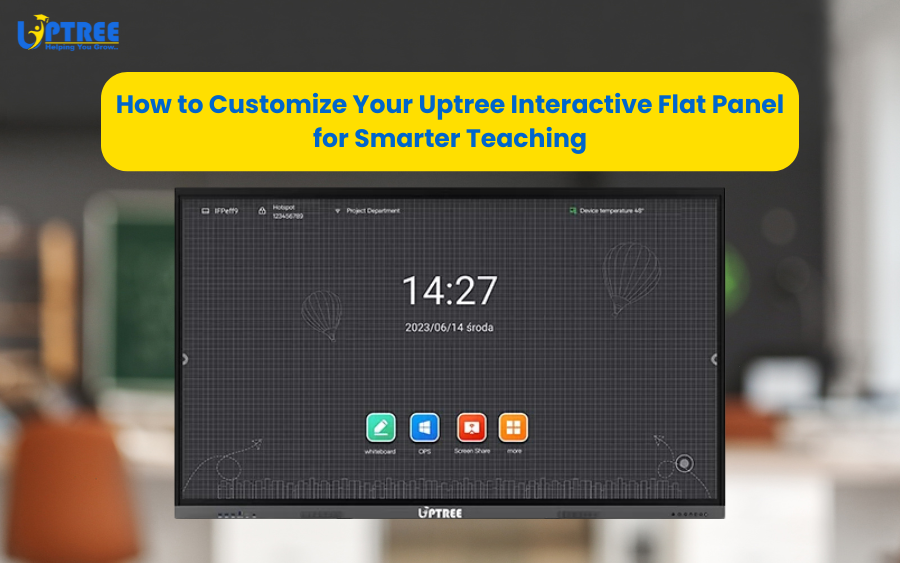
Smarter Teaching with Uptree Interactive Flat Panels
Smarter Teaching with Uptree Interactive Flat Panels is transforming modern classrooms by making lessons more engaging, interactive, and effective. As education continues to evolve in the digital era, teachers and educational institutions are seeking innovative ways to improve student participation, simplify lesson delivery, and enhance learning outcomes. Traditional teaching methods, while valuable, often struggle to meet the expectations of today’s technology-savvy students.
Interactive Flat Panels (IFPs) have emerged as one of the most powerful tools for modern education. They combine advanced display technology, touch functionality, multimedia capabilities, and collaboration features into a single solution. At Uptree Consultancy Services Private Limited, we provide state-of-the-art Interactive Flat Panels that empower educators to create dynamic and future-ready learning environments.
In this blog, we will explore how Smarter Teaching with Uptree Interactive Flat Panels helps educators improve classroom engagement, streamline instruction, and create meaningful learning experiences for students.
The Evolution of Modern Teaching
Education has changed dramatically over the last decade. The shift from traditional chalkboards and whiteboards to digital learning tools has opened new possibilities for teachers and students alike.
Today’s classrooms require:
- Interactive learning experiences
- Multimedia content
- Real-time collaboration
- Digital resources
- Flexible teaching methods
This is why many schools are embracing Smarter Teaching with Uptree Interactive Flat Panels to modernize their classrooms and improve educational outcomes.
What Are Uptree Interactive Flat Panels?
Before understanding the benefits of Smarter Teaching with Uptree Interactive Flat Panels, it is important to understand what an Interactive Flat Panel is.
An Interactive Flat Panel is a large touchscreen display that combines the functionality of:
- A whiteboard
- A projector
- A computer
- A collaboration tool
- A presentation platform
Uptree Interactive Flat Panels offer features such as:
- Ultra HD 4K display
- Multi-touch support
- Wireless screen sharing
- Built-in whiteboard tools
- Android operating system
- OPS compatibility
- Multimedia integration
These features make teaching more engaging and efficient.
Why Traditional Teaching Methods Need Support from Technology
Traditional teaching methods remain important, but modern students learn differently.
They are accustomed to:
- Digital devices
- Interactive content
- Visual learning
- Instant access to information
By adopting Smarter Teaching with Uptree Interactive Flat Panels, educators can bridge the gap between traditional instruction and modern learning preferences.
Technology enhances teaching while preserving the essential role of educators.
Enhancing Student Engagement
Student engagement is one of the biggest challenges in education.
A major benefit of Smarter Teaching with Uptree Interactive Flat Panels is the ability to capture and maintain student attention.
Interactive lessons encourage students to:
- Participate actively
- Answer questions
- Solve problems
- Collaborate with peers
When students engage directly with lesson content, learning becomes more enjoyable and effective.
Creating Interactive Learning Experiences
Passive learning often limits student involvement.
With Smarter Teaching with Uptree Interactive Flat Panels, classrooms become interactive environments where students can engage directly with educational content.
Teachers can:
- Write on the screen
- Highlight concepts
- Draw diagrams
- Conduct quizzes
- Use interactive applications
These capabilities encourage active learning and improve knowledge retention.
Supporting Visual Learning
Many students learn best through visual content.
One reason schools choose Smarter Teaching with Uptree Interactive Flat Panels is the ability to display rich multimedia resources.
Teachers can present:
- Images
- Videos
- Animations
- Charts
- Graphs
The Ultra HD 4K display ensures that every student can clearly see classroom content.
Encouraging Classroom Collaboration
Collaboration is a critical skill in today’s world.
Smarter Teaching with Uptree Interactive Flat Panels promotes teamwork by enabling students to work together on projects and activities.
Students can:
- Solve problems collaboratively
- Participate in group discussions
- Share ideas visually
- Interact with learning materials
Multi-touch functionality allows multiple users to interact with the panel simultaneously.
Simplifying Lesson Delivery
Teachers often spend valuable time managing classroom tools and materials.
With Smarter Teaching with Uptree Interactive Flat Panels, lesson delivery becomes more efficient.
Educators can:
- Access digital resources instantly
- Navigate lessons smoothly
- Switch between applications easily
- Present multimedia content without interruption
This allows teachers to focus more on instruction and student engagement.
Improving Knowledge Retention
Research consistently shows that interactive learning improves retention.
A major advantage of Smarter Teaching with Uptree Interactive Flat Panels is that students are more likely to remember information presented through engaging visual and interactive methods.
Interactive learning helps students:
- Understand concepts faster
- Retain information longer
- Apply knowledge more effectively
This contributes to better academic performance.
Supporting Multiple Learning Styles
Every student learns differently.
Some students are visual learners, while others learn through listening, discussion, or hands-on activities.
By implementing Smarter Teaching with Uptree Interactive Flat Panels, schools can accommodate various learning styles through:
- Visual presentations
- Audio content
- Interactive exercises
- Collaborative activities
This ensures that more students benefit from classroom instruction.
Wireless Content Sharing
Modern classrooms often involve multiple devices.
One reason educators appreciate Smarter Teaching with Uptree Interactive Flat Panels is the ability to share content wirelessly.
Teachers and students can connect:
- Laptops
- Tablets
- Smartphones
Wireless sharing reduces setup time and creates a more flexible learning environment.
Real-Time Annotation
Annotation is an essential teaching tool.
With Smarter Teaching with Uptree Interactive Flat Panels, teachers can annotate directly on lesson materials.
They can:
- Highlight important information
- Draw attention to key concepts
- Add explanations
- Mark corrections
These annotations can be saved and shared for future reference.
Making Complex Subjects Easier to Understand
Subjects such as mathematics, science, and engineering often involve complex concepts.
Smarter Teaching with Uptree Interactive Flat Panels helps simplify these topics through:
- Interactive diagrams
- Simulations
- Visual demonstrations
- Step-by-step explanations
Students can better understand abstract concepts when they are presented visually.
Enhancing Hybrid and Remote Learning
Education is no longer limited to physical classrooms.
Many institutions now support hybrid and remote learning models.
With Smarter Teaching with Uptree Interactive Flat Panels, teachers can conduct lessons that connect both in-person and remote students effectively.
The panels integrate seamlessly with platforms such as:
- Zoom
- Microsoft Teams
- Google Meet
This ensures continuity in learning regardless of location.
Supporting Digital Education Initiatives
Governments and educational institutions are increasingly investing in digital education.
Smarter Teaching with Uptree Interactive Flat Panels aligns perfectly with these initiatives by providing technology that supports:
- Smart classrooms
- Digital learning
- Interactive instruction
- Educational innovation
This helps institutions prepare students for a technology-driven future.
Reducing Dependence on Traditional Equipment
Traditional classrooms often require multiple devices.
Interactive Flat Panels can replace:
- Projectors
- Whiteboards
- Separate presentation systems
This is another reason schools choose Smarter Teaching with Uptree Interactive Flat Panels.
A single integrated solution simplifies classroom management while reducing maintenance requirements.
Improving Teacher Productivity
Teachers manage numerous responsibilities beyond lesson delivery.
By adopting Smarter Teaching with Uptree Interactive Flat Panels, educators can improve productivity through:
- Faster lesson preparation
- Easy access to digital content
- Simplified classroom management
- Efficient resource sharing
These efficiencies allow teachers to spend more time supporting students.
Applications Across Educational Levels
Primary Schools
Interactive content helps young learners stay engaged and develop foundational skills.
Secondary Schools
Teachers can deliver more advanced lessons through multimedia and collaborative tools.
Colleges and Universities
Interactive Flat Panels support lectures, presentations, research discussions, and hybrid learning.
Training Centers
Professional training programs benefit from interactive demonstrations and collaborative learning experiences.
Across all educational levels, Smarter Teaching with Uptree Interactive Flat Panels provides measurable advantages.
Why Educational Institutions Choose Uptree
At Uptree Consultancy Services Private Limited, we understand the evolving needs of modern education.
Our Interactive Flat Panels are designed to deliver:
- Superior display quality
- Reliable performance
- User-friendly functionality
- Advanced collaboration tools
- Long-term value
Schools trust Uptree because we provide solutions that genuinely support educational excellence.
The Uptree Advantage
Educational institutions choose Uptree because of features such as:
- Ultra HD 4K display
- Multi-touch technology
- Wireless connectivity
- Interactive whiteboarding
- OPS compatibility
- Multimedia integration
- Hybrid learning support
These capabilities make Smarter Teaching with Uptree Interactive Flat Panels a practical and effective solution for modern classrooms.
Preparing Students for the Future
The future workforce will require strong digital skills.
By implementing Smarter Teaching with Uptree Interactive Flat Panels, schools expose students to technology-rich learning environments that prepare them for higher education and professional careers.
Students gain experience with:
- Digital collaboration
- Interactive tools
- Technology-based communication
- Modern learning methods
These skills are increasingly important in today’s world.
Conclusion
Smarter Teaching with Uptree Interactive Flat Panels is revolutionizing education by creating engaging, interactive, and future-ready learning environments. From improving student participation and supporting different learning styles to enhancing collaboration and simplifying lesson delivery, Interactive Flat Panels provide powerful advantages for educators and institutions alike.
As schools continue to embrace digital transformation, the need for advanced classroom technology will only grow. Uptree Interactive Flat Panels offer a comprehensive solution that combines innovation, reliability, and educational value.
At Uptree Consultancy Services Private Limited, we are committed to helping educational institutions achieve better teaching outcomes through modern technology. By choosing Smarter Teaching with Uptree Interactive Flat Panels, schools can empower teachers, inspire students, and build smarter classrooms for the future.
To learn more about the Uptree Interactive Flat Panel, explore our related blogs:
-
4 Reasons Uptree Interactive Flat Panel is Essential: Read More
-
Ultimate Smart Upgrade at St. Xavier’s Ahmedabad: Read More
-
Rai University IT Classroom Upgrade with Uptree: Read More