
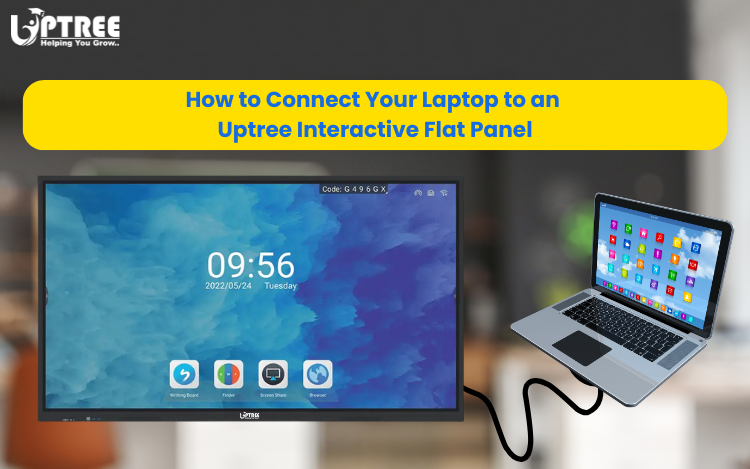
In today’s digital-first world, interactive flat panels (IFPs) have become an essential tool for classrooms, meeting rooms, and collaborative workspaces. Uptree’s Interactive Flat Panel combines high-definition display quality with seamless touch interactivity, making it the perfect partner for presentations, online classes, brainstorming sessions, and video conferencing.
But to get the most out of your panel, you’ll want to connect your laptop to it. Whether you’re a teacher preparing a lesson, a professional setting up a client presentation, or a student sharing a project, the connection process is simple. Here’s a step-by-step guide:
1. Check the Ports on Your Laptop and IFP
Uptree Interactive Flat Panels come equipped with multiple input options, ensuring compatibility with a wide range of devices. Common ports include:
- HDMI — For high-quality video and audio.
- Touch Cable — For touch interactivity.
- VGA — For older laptops.
- USB-C — For modern laptops (if supported).
- Wireless connectivity — For cable-free screen sharing.
2. Connect Using HDMI (Recommended)
The most common method is HDMI, as it transmits both video and audio.
- Plug one end of the HDMI cable into your laptop.
- Plug the other end into the HDMI port on the Interactive Flat Panel.
- Switch the panel’s input source to HDMI.
Your laptop screen will instantly mirror on the panel.
For touch interactivity, connect the USB-B cable (from panel to laptop). This enables you to control your laptop directly from the Interactive Flat Panel touchscreen.
3. Connect Wirelessly (No Cables Needed)
Many Uptree Interactive Flat Panels support wireless screen sharing via built-in apps or dongles.
- Ensure your laptop and Interactive Flat Panel are connected to the same Wi-Fi network.
- Use the built-in wireless sharing tool (such as Eshare, Miracast, or ScreenShare depending on the model).
- Follow the on-screen instructions to cast your laptop display.
This is ideal for collaborative sessions where multiple users want to share screens without plugging in cables.
4. Use USB-C (If Supported)
If your laptop has a USB-C port with DisplayPort support:
- Connect a USB-C to USB-C cable between your laptop and Interactive Flat Panel.
- It will carry video, audio, and sometimes even touch signals.
- This is the fastest and cleanest option for modern laptops.
6. Enjoy the Interactive Experience
Once connected, you can:
- Navigate your laptop directly from the panel.
- Use touch gestures to annotate presentations.
- Run video calls on the big screen.
- Enhance engagement with students, clients, or teammates.
Connecting your laptop to an Uptree Interactive Flat Panel is quick and hassle-free, whether you prefer HDMI, USB-C, or wireless sharing. Once connected, you unlock a powerful interactive experience designed to make learning, presenting, and collaborating more effective.
Prefer visuals? Watch our demonstration video on connecting your laptop to an Uptree Interactive Flat Panel: https://youtube.com/shorts/nKToy6MXMT8?si=XfHgsGCzygiGQliS
For more information visit : www.uptree.in