
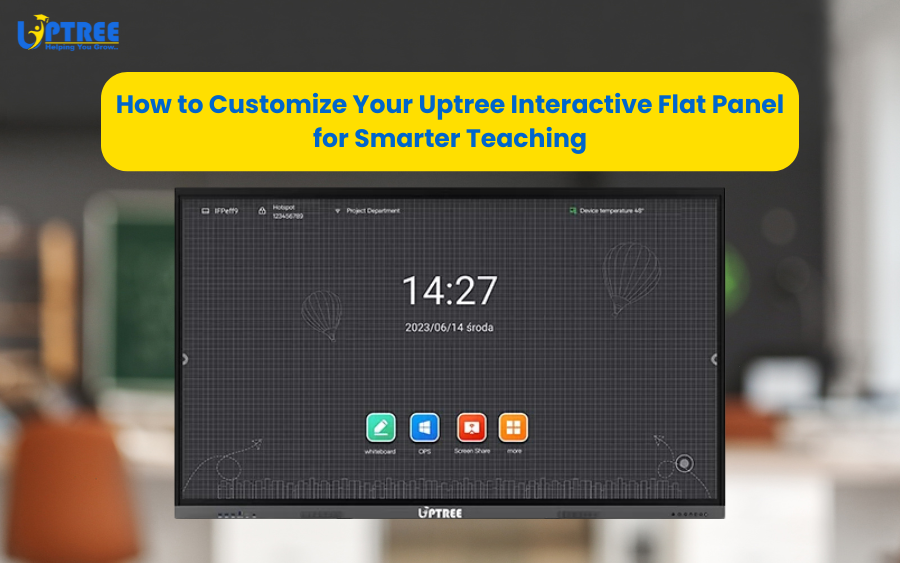
Every classroom is unique, and so is every teaching style. That’s why the Uptree Interactive Flat Panel (IFP) is designed to adapt to the needs of teachers, rather than forcing them into a one-size-fits-all approach. By customizing its features and tools, teachers can transform the Uptree Interactive Flat Panel into a personalized teaching assistant that saves time, enhances lessons, and keeps students engaged.
Here are some practical ways to customize your Uptree Interactive Flat Panel for smarter teaching:
1. Personalize the Home Screen
Teachers can customize the home screen to include frequently used apps, lesson materials, or online resources. This ensures everything is accessible in just a few taps, reducing downtime during classes.
2. Create Subject-Specific Folders
Organize your teaching materials by subject or grade level directly on the Uptree Interactive Flat Panel. Having presentations, videos, and worksheets neatly categorized makes lesson planning faster and teaching more efficient.
3. Use Customized Templates
The built-in interactive whiteboard allows you to design and save templates for specific activities, such as math problem-solving, science diagrams, or language practice. This way, you don’t need to recreate layouts every time you teach a topic.
4. Integrate Your Favorite Apps
The Uptree Interactive Flat Panel supports a wide range of educational apps. Teachers can install subject-specific tools, quiz platforms, or collaboration apps that fit their curriculum. By tailoring the panel with these tools, lessons become more dynamic and interactive.
5. Adjust Display and Writing Preferences
Customize pen thickness, colors, and background options to suit your teaching style. For example, teachers can set up a dark background for better visibility in large classrooms or use color-coded annotations to highlight key concepts.
6. Save and Share Annotations Instantly
Every annotation can be saved and shared directly with students. Teachers can set up folders for different classes so that lesson notes are automatically stored and organized. This feature helps in building a digital archive of lessons for future use.
7. Record Lessons for Reuse
Teachers can customize recording settings to capture lessons, including screen activity and voice. These recordings can be reused for revision sessions or shared with absent students, ensuring no one misses out.
8. Connect with Cloud Storage
By linking the Uptree Interactive Flat Panel with Google Drive, OneDrive, or other cloud platforms, teachers can access and save materials directly in the cloud. This customization ensures lesson content is available anytime, anywhere.
The Uptree Interactive Flat Panel is more than just a digital display — it’s a flexible teaching partner. By customizing its features, teachers can save time, improve lesson delivery, and make classrooms smarter and more engaging. With the right setup, every lesson becomes more interactive, organized, and impactful.
To learn more about how Uptree can upgrade your meeting spaces, visit www.uptree.in
Follow us: Facebook | Instagram | LinkedIn | X | YouTube | Pinterest