
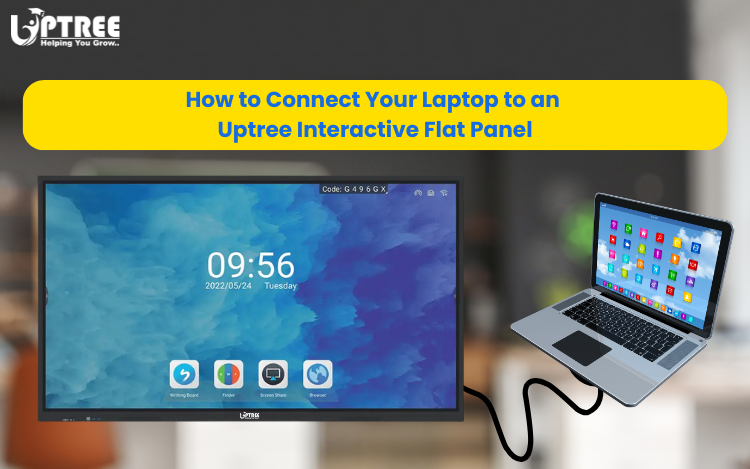
Smart Steps to Connect Laptop with Uptree IFP
Smart Steps to Connect Laptop with Uptree IFP are essential for teachers, professionals, trainers, and students who want a seamless and interactive presentation experience. In today’s digital-first world, Interactive Flat Panels (IFPs) have become a powerful solution for smart classrooms, meeting rooms, conference halls, and collaborative workspaces.
Uptree Interactive Flat Panels combine Ultra HD display quality, multi-touch technology, and smart connectivity features to create engaging and productive environments. Whether you are delivering a classroom lesson, conducting a business presentation, hosting a video conference, or sharing project work, connecting your laptop to an Uptree IFP is simple and efficient.
This guide explains the Smart Steps to Connect Laptop with Uptree IFP and helps you unlock the full potential of interactive collaboration.
Why Connect Your Laptop to an Uptree IFP?
Connecting your laptop to an Uptree Interactive Flat Panel allows you to:
- Share presentations on a larger screen
- Conduct interactive teaching sessions
- Collaborate during meetings
- Access files and applications easily
- Use touch-enabled controls directly from the panel
- Improve engagement during discussions and training
Uptree IFPs are designed to support smooth connectivity for both educational and professional environments.
1. Check Available Ports on Your Laptop & Uptree IFP
The first step in the Smart Steps to Connect Laptop with Uptree IFP is checking the available connectivity ports on both devices.
Uptree Interactive Flat Panels support multiple connection options including:
- HDMI
- USB Touch Port
- USB-C
- VGA
- Wireless Screen Sharing
This wide compatibility ensures that laptops of different generations can connect easily to the panel.
Common Port Types
HDMI
Used for:
- High-quality video
- Audio transmission
- Stable wired connection
USB Touch Cable
Used for:
- Enabling touch interaction
- Controlling the laptop directly from the panel
USB-C
Used for:
- Video
- Audio
- Data transfer
- Touch support (on supported devices)
VGA
Used mainly for:
- Older laptops
- Basic video output
Checking ports beforehand makes the connection process faster and smoother.
2. Connect Using HDMI (Most Recommended)
One of the easiest and most reliable methods in the Smart Steps to Connect Laptop with Uptree IFP is using an HDMI cable.
Steps:
- Plug one end of the HDMI cable into your laptop.
- Connect the other end to the HDMI port on the Uptree Interactive Flat Panel.
- Select the HDMI input source on the panel.
- Your laptop screen will instantly display on the IFP.
HDMI provides:
- High-definition video
- Audio support
- Stable performance
- Smooth presentation experience
Enable Touch Functionality
To use touch interaction:
- Connect the USB touch cable from the panel to your laptop.
- The panel will now allow touch control directly on your laptop interface.
This means you can:
- Write on presentations
- Navigate applications
- Annotate documents
- Interact directly with content
This feature is especially useful for:
- Smart classrooms
- Corporate presentations
- Training sessions
- Interactive meetings
3. Connect Wirelessly for a Cable-Free Experience
Wireless connectivity is one of the most convenient features covered in the Smart Steps to Connect Laptop with Uptree IFP.
Many Uptree Interactive Flat Panels support wireless screen sharing through built-in applications and casting technologies.
Steps:
- Connect both the laptop and IFP to the same Wi-Fi network.
- Open the wireless sharing feature on the panel.
- Use supported tools like:
- EShare
- Miracast
- ScreenShare
- Follow the on-screen instructions to connect your laptop.
Once connected, your laptop screen will display wirelessly on the panel.
Benefits of Wireless Sharing:
- No cable clutter
- Faster collaboration
- Easy multi-user screen sharing
- Flexible movement during presentations
Wireless connectivity is perfect for:
- Collaborative classrooms
- Business meetings
- Group discussions
- Training programs
4. Use USB-C for Modern Laptops
Modern laptops increasingly support USB-C connectivity, making it one of the smartest options in the Smart Steps to Connect Laptop with Uptree IFP.
Steps:
- Connect a USB-C cable between your laptop and the Uptree IFP.
- Ensure your laptop supports DisplayPort over USB-C.
- The panel will automatically detect the laptop connection.
Advantages of USB-C:
- Single-cable solution
- Video transmission
- Audio support
- Faster connectivity
- Touch functionality support
USB-C reduces cable management and creates a cleaner workspace setup.
This option is ideal for:
- Modern business laptops
- Professional workspaces
- Conference rooms
- Hybrid work environments
5. Switch Display Modes on Your Laptop
Another important part of the Smart Steps to Connect Laptop with Uptree IFP is selecting the correct display mode.
After connecting, your laptop may give multiple display options:
- Duplicate Screen
- Extend Display
- Second Screen Only
Duplicate Mode
Displays the same content on both screens.
Best for:
- Presentations
- Classroom teaching
- Demonstrations
Extend Mode
Uses the panel as a second monitor.
Best for:
- Multi-tasking
- Dual-screen workflows
- Advanced presentations
Selecting the right mode improves productivity and collaboration.
6. Enjoy Interactive Collaboration
Once your laptop is connected, the real power of Uptree Interactive Flat Panels becomes visible.
You can:
- Control your laptop directly from the panel
- Annotate presentations
- Conduct interactive teaching sessions
- Host video conferences
- Collaborate with teams
- Use touch gestures and digital whiteboarding
This transforms ordinary meetings and classrooms into interactive environments.
The interactive experience offered by Uptree IFPs helps improve:
- Engagement
- Communication
- Productivity
- Audience participation
This is why organizations are increasingly adopting Uptree Interactive Flat Panels.
Why Uptree Interactive Flat Panels Are the Smart Choice
At Uptree Consultancy Services Private Limited, our Interactive Flat Panels are designed for seamless collaboration and smart connectivity.
Key features include:
- Ultra HD 4K display
- Multi-touch technology
- Wireless screen sharing
- Smooth annotation tools
- Android operating system
- Commercial-grade durability
- Multiple connectivity ports
Whether you are using:
- HDMI
- USB-C
- Wireless casting
- Touch-enabled collaboration
Uptree IFPs ensure a smooth and professional user experience.
Final Thoughts
The Smart Steps to Connect Laptop with Uptree IFP show how easy it is to create a smarter and more interactive workspace. Whether you are teaching a class, presenting to clients, conducting training, or collaborating with teams, connecting your laptop to an Uptree Interactive Flat Panel enhances communication and engagement instantly.
With support for HDMI, USB-C, wireless casting, and touch interaction, Uptree IFPs are built to deliver flexibility, simplicity, and productivity.
For institutions and businesses looking to improve collaboration and digital communication, Uptree Interactive Flat Panels are the perfect solution.
Watch the Demonstration Video
Prefer visual guidance? Watch our demo here:
Watch Uptree Laptop Connection Demo
To learn more about the Uptree Interactive Flat Panel, explore our related blogs:
-
4 Reasons Uptree Interactive Flat Panel is Essential: Read More
-
Ultimate Smart Upgrade at St. Xavier’s Ahmedabad: Read More
-
Rai University IT Classroom Upgrade with Uptree: Read More